Getting started
Finding your way around
One window per server. The name at the top of a window is always the server everything in it acts on, so two servers are never confused.
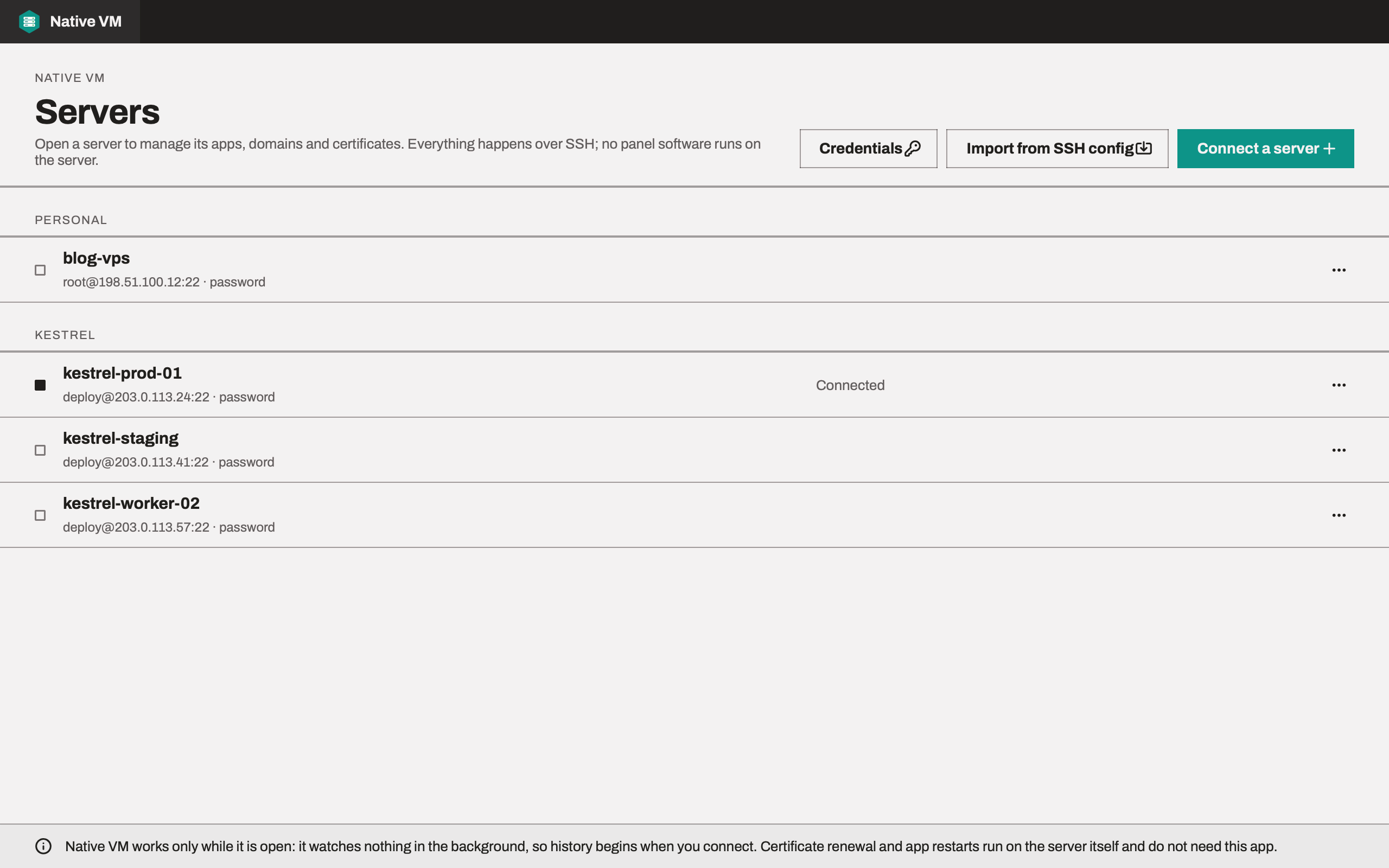
The Servers window
The first window is the Servers window: your saved servers, grouped by their client or project. From here you Connect a server, Import from SSH config, choose where Credentials are kept, and edit or remove a server from its ⋯ menu.
Opening a server turns that window into the server's window. The switcher beside the server's name in the top bar opens any other server in a window of its own. Switch server, at the foot of the sidebar, opens the same list.
A server's window
The sidebar lists the server's pages, with a count beside each where it helps:
| Page | What it's for |
|---|---|
| Overview | What needs attention, live metrics, apps and recent activity. See Overview and metrics. |
| Apps | Every app on the server, with its runtime, domain, certificate and status. |
| Domains | Each domain, which app serves it, whether its DNS points here, and its HTTPS. |
| SSL | Certificates, their expiry, and how renewal runs. |
| Files | The file manager. |
| Services | systemd services, starting with your apps'. |
| Cron jobs | Scheduled commands, as systemd timers. |
| Terminal | Shells on the server, in tabs. |
| Live Monitor | htop, live. Advanced mode. |
| Uninstaller | Packages you installed, and their removal. Advanced mode. |
Under the pages, the sidebar lists the server's apps with a status mark beside each. Choose one to open its page, with its own tabs: Overview, Deploys, Service, Domain, SSL, Files and Environment.
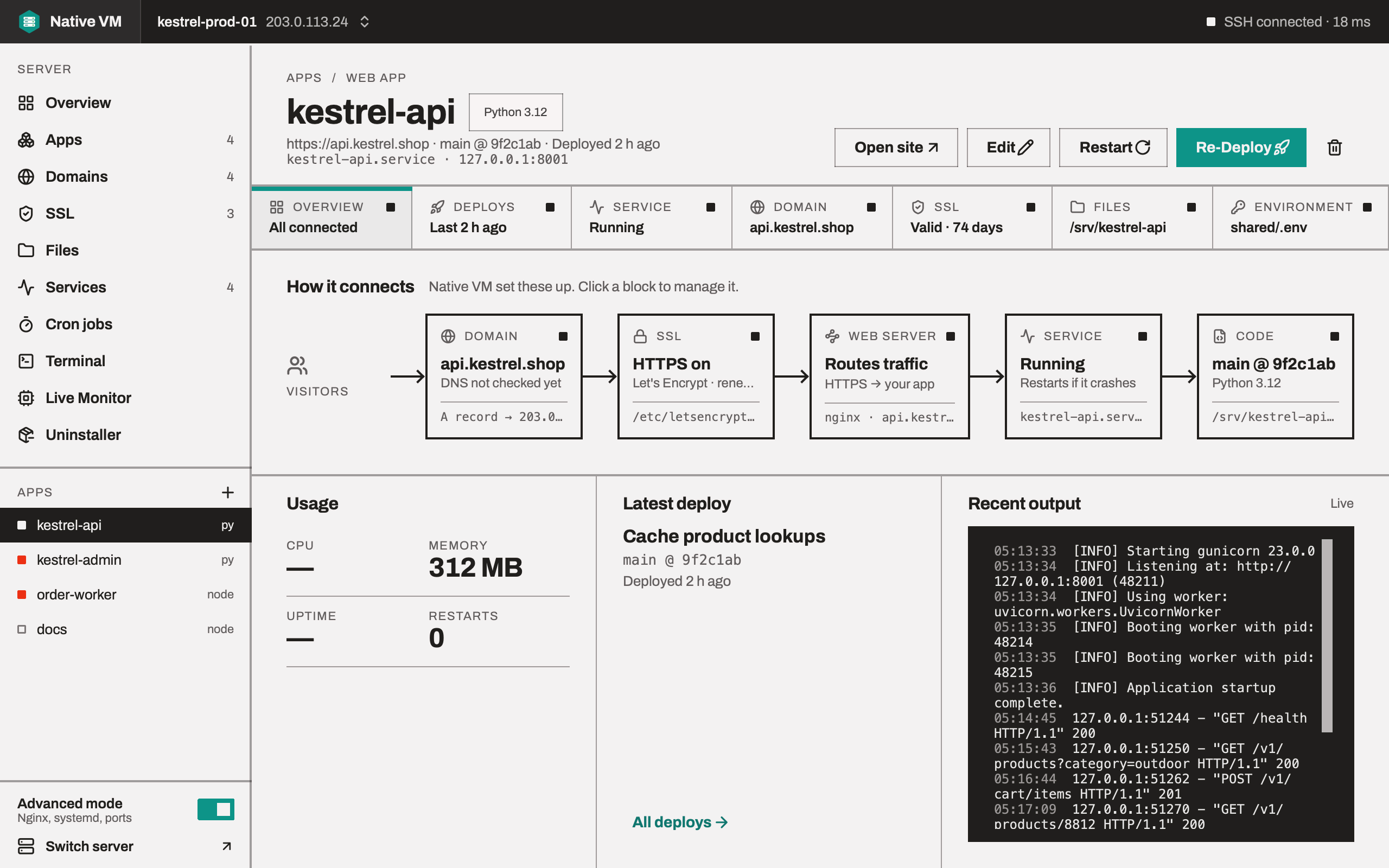
Status marks
State is shown with one small square, and always with words beside it saying the same thing, so it reads without colour vision:
- Filled: fine, running.
- Red: needs you: failed, crashed, or a certificate about to expire.
- Hollow: stopped, or not set up.
- Blinking: working on it.
Teal is for actions and progress; red is kept for what needs your attention.
Seeing that something is happening
Every action crosses the network, so Native VM always shows that it's working:
- The button you pressed turns busy. It shows a turning arc and what it's doing, such as Deploying…, and comes back as it was when the action ends.
- The activity bar, a thin strip under the top bar, slides while anything the window started is still in flight.
When something fails, the dialog says what failed and what to do next, in words. Where a program's own output is the most useful thing, as with nginx and certbot, it is shown verbatim.
Every change is shown first
Adding or removing a domain, turning on HTTPS, saving a file and saving an app's environment all show a diff first, and send nothing until you press Apply. Secret-looking values stay masked in the diff, and a replaced one is marked (changed).
The account menu and About
- The account menu, at the right of the top bar, shows your plan and has Check my plan again and Sign out.
- About Native VM opens from the logo at the left of the top bar: the version, Check for updates, support contacts, and the licences of the open-source software the app ships.